
Introduction
Setting a sleep timer on your iPhone is a simple yet effective way to improve your sleep quality and overall well-being. Whether you like to listen to music, audiobooks, or white noise as you drift off to sleep, the sleep timer feature ensures your device won't keep playing all night. This guide will walk you through the process of setting a sleep timer, using Siri for a hands-free experience, and exploring third-party apps that offer similar functionality.
Why Use a Sleep Timer on iPhone
Benefits of Using a Sleep Timer
A sleep timer on your iPhone has several advantages:- Improved Sleep Quality: It ensures that your device turns off after a set period, helping you fall asleep without distractions.- Battery Conservation: Prevents your phone from running all night, thereby conserving battery life.- Reduced Data Usage: Limits streaming time, saving data if you are not connected to Wi-Fi.
Common Scenarios
Many people find a sleep timer useful in various situations:- Listening to Music: If you enjoy drifting off to music, a timer can stop the playback so it doesn't continue all night.- Audiobooks and Podcasts: Ideal for those who love bedtime stories or informative talks.- White Noise: Great for blocking out disturbances and helping you fall asleep faster.
Step-by-Step Guide to Setting a Sleep Timer
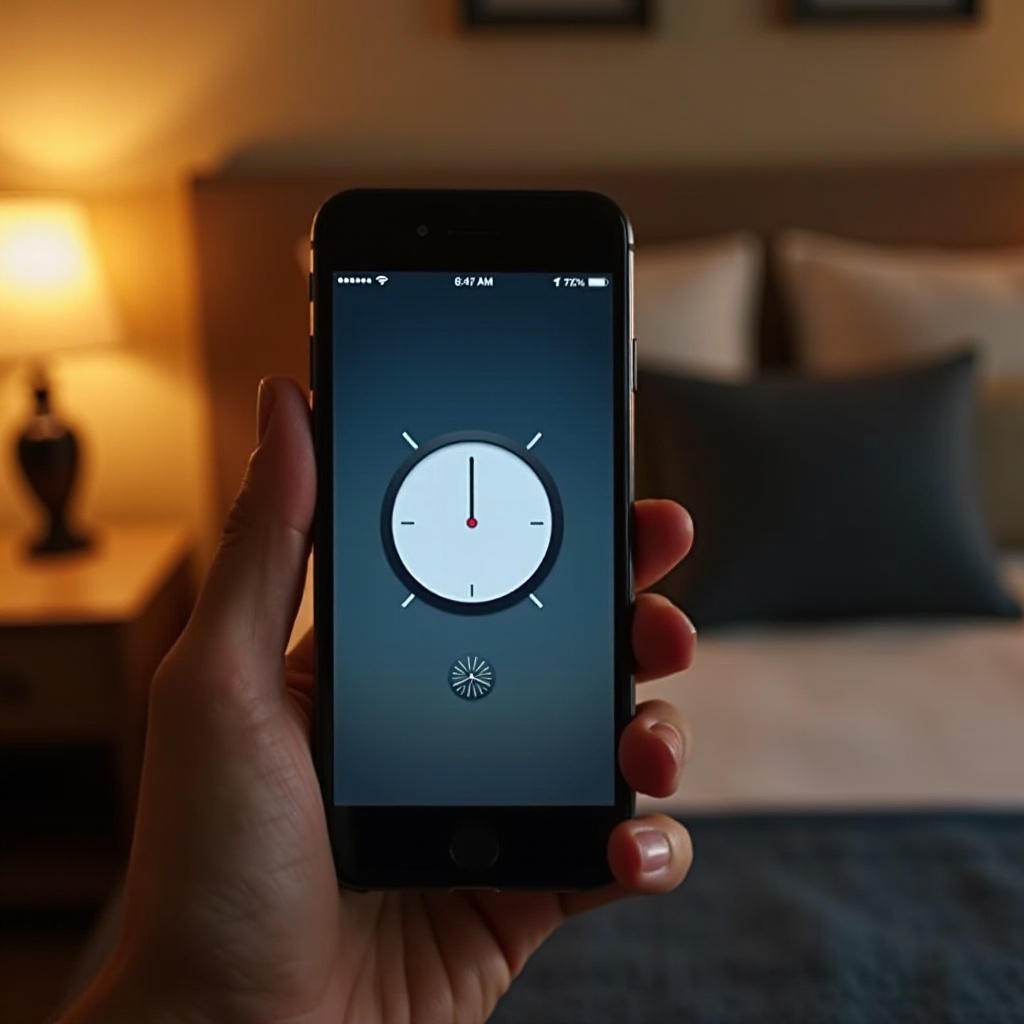
Activating the sleep timer on your iPhone is straightforward. Follow these steps:
Accessing the Clock App
- Open the Clock app on your iPhone. This app is pre-installed and typically found on the home screen.
Navigating to the Timer Section
- At the bottom of the screen, tap the Timer tab.
Selecting Your Desired Time Duration
- Set the timer to the desired duration by swiping up or down on the hours, minutes, and seconds.
Setting the 'Stop Playing' Option
- Tap on When Timer Ends.
- Scroll to the bottom and select Stop Playing. This ensures that any music or audio stops when the timer ends.
- Tap Set to confirm your choice.
- Finally, tap Start to begin the timer.
Using Siri to Set a Sleep Timer
For a hands-free approach, you can use Siri to set a sleep timer. This method is convenient and quick, especially when you are already in bed.
Voice Commands for Sleep Timer
Simply activate Siri by saying 'Hey Siri' or holding down the side button and say:- 'Set a timer for [desired duration].- Follow up with, 'When the timer ends, stop playing.Siri will confirm your request and set the timer accordingly.
Troubleshooting Siri-Related Issues
If Siri doesn't respond or execute the command:- Ensure Siri is enabled in Settings > Siri & Search.- Check for software updates.- Restart your device.
Using Third-Party Apps for Sleep Timer
Besides the iPhone’s built-in timer, several third-party apps offer enhanced features.
Popular Third-Party Apps to Consider
- Sleep Timer: Allows music to fade out gradually.
- AutoSleep: Tracks and analyses your sleep patterns while providing timer functionalities.
- Pzizz: Combines sleep timer with guided meditations and relaxing sounds.
Pros and Cons
Pros:- More features compared to the iPhone’s default timer.- Customization options for a better user experience.Cons:- Some apps may require a purchase or subscription.- May consume more battery and data.
Enhancing Your Sleep with iPhone's Sleep Timer Features
Combining the sleep timer with other iPhone features can further enhance your sleep experience.
Integrating with Apple’s Bedtime Settings
- Open the Health app.
- Tap Browse, then Sleep.
- Set up Sleep Schedule and use the timer to stop playing audio when your bedtime starts.
Using Focus Mode and Do Not Disturb
Focus Mode and Do Not Disturb minimize distractions by silencing notifications, which can help you maintain a consistent sleep routine.
Troubleshooting Common Problems
Despite its simplicity, users may encounter issues with the sleep timer.
Timer Not Activating: Solution Checklist
- Ensure that the Stop Playing option is selected.
- Check if other settings conflict with the timer.
Software Bugs and Fixes
- Update iOS: Make sure your iPhone is running the latest software.
- App Conflicts: Check if other apps are overriding the timer settings.
Conclusion
Setting a sleep timer on your iPhone is a seamless way to enhance your bedtime routine. Whether you're using the built-in Clock app, Siri, or third-party applications, this feature ensures your audio stops playing after a set duration. This contributes to a better sleep environment and conserves battery life. Follow the steps outlined in this guide to set up your sleep timer and explore additional features to optimize your sleep experience.
Frequently Asked Questions
Can I set different sleep timers for different apps?
Yes, some third-party apps allow you to set individual timers for various media apps.
Why isn't my sleep timer working with some media apps?
Some apps may not support the 'Stop Playing' feature. Check app settings or use a compatible third-party app.
Are there alternatives to iPhone’s built-in sleep timer?
Yes, several third-party apps offer enhanced sleep timer functionalities and additional features tailored to improve your sleep.
