
Introduction
Connecting your tablet to your TV can revolutionize your viewing experience. Whether you want to watch your favorite shows, play mobile games on a bigger screen, or give presentations, screen mirroring offers amazing possibilities. This guide will walk you through various methods to seamlessly mirror your tablet to your TV.
Understanding Screen Mirroring
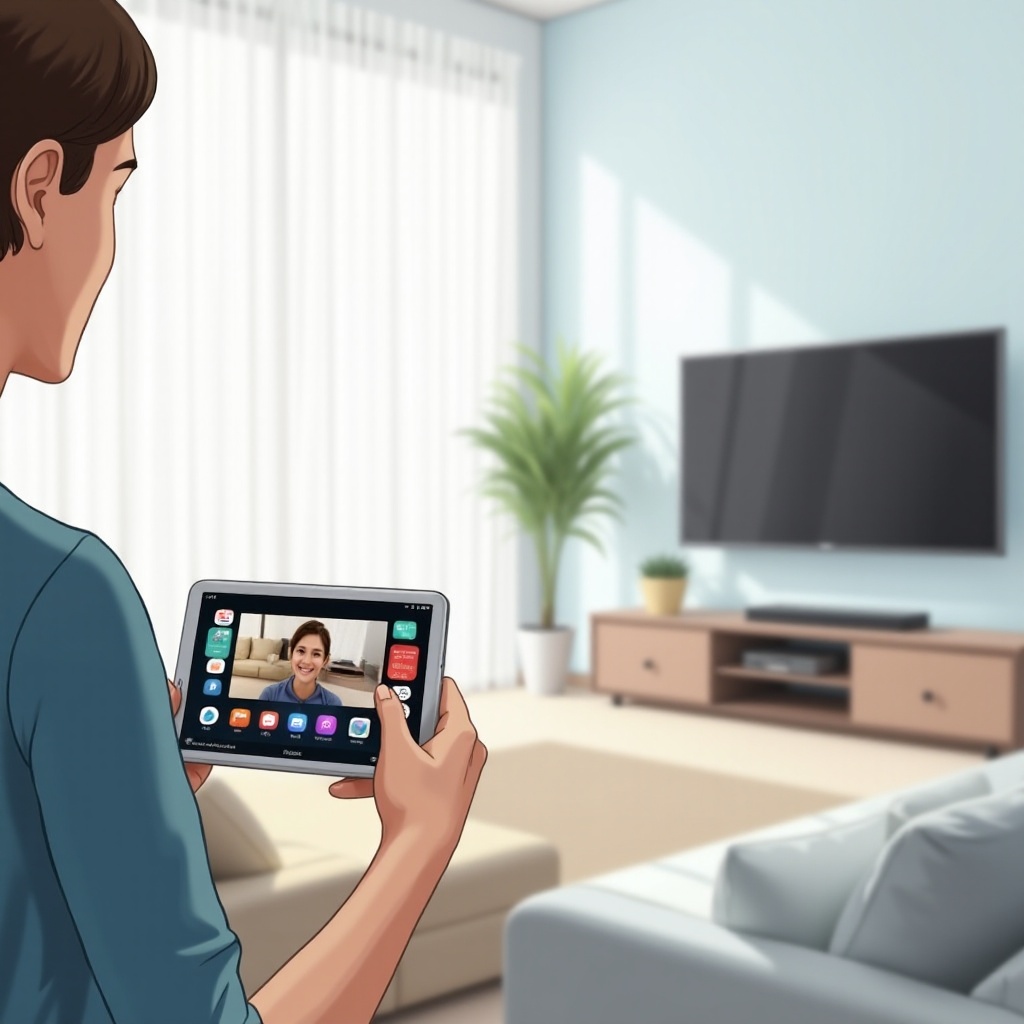
Screen mirroring allows you to replicate your tablet's screen onto your TV. This means whatever you do on your tablet, like navigating apps or playing videos, shows up on a larger screen. Understanding this concept is essential to ensure you can choose the best method that fits your needs and device compatibility.
Preparing Your Devices
To start mirroring, it is essential to get your devices ready:
Check Compatibility
Ensure your tablet and TV support screen mirroring. Most modern smart TVs do, but older models might need an external device like a Chromecast or an Apple TV.
Gather Necessary Equipment
Depending on your chosen method, you might need a Chromecast, Apple TV, HDMI cable, or a compatible app. Have everything at hand before you start.
Ensuring Software is Up-to-date
Make sure your tablet and TV are running the latest software versions to avoid compatibility issues. Check for updates in the settings menu of your devices.
Mirroring Methods
Several methods exist to mirror your tablet to your TV. Here are the most common ones:
Using Chromecast
- Plug the Chromecast into your TV and power it on.
- Connect your tablet and Chromecast to the same Wi-Fi network.
- Open the Google Home app on your tablet.
- Tap the device you want to cast to and select 'Cast my Screen'.
Using Apple AirPlay
- Ensure your Apple TV and tablet are on the same Wi-Fi network.
- Swipe down from the upper-right corner of your iPad screen to open Control Center.
- Tap Screen Mirroring, then select your Apple TV.
Using an HDMI Cable
- Connect one end of the HDMI cable to your TV and the other end to the tablet using the appropriate adapter.
- Switch your TV to the correct HDMI input.
- Your tablet’s screen should now be mirrored on your TV.
Mirroring via Apps
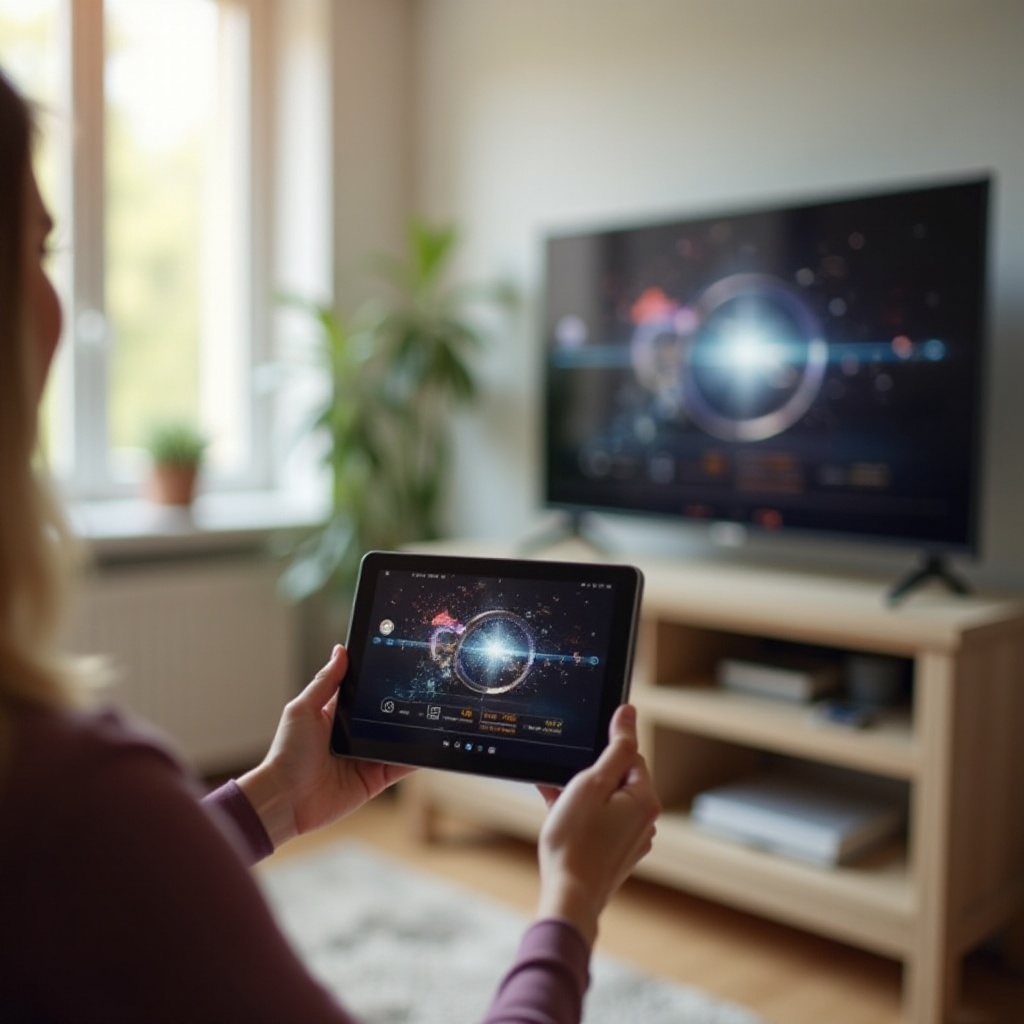
Certain apps can simplify the mirroring process:
Google Home App
The Google Home app can be used for Chromecast devices. Set up is straightforward: connect your Chromecast and tablet to the same network and use the app to cast your screen.
Third-Party Apps
Apps like Mirroring360, ApowerMirror, and TeamViewer offer additional features beyond basic mirroring, such as screen recording and remote control. Download your preferred app and follow the specific instructions provided.
Troubleshooting Common Issues
If you encounter problems while mirroring, here’s how to fix them:
Wi-Fi Connectivity Problems
Ensure both devices are connected to the same network and restart your router if needed. Strong and stable Wi-Fi is crucial for screen mirroring.
Audio and Video Sync Issues
Check your Wi-Fi connection first, and make sure your devices are up to date. Try lowering the streaming quality or closing other apps that might be using bandwidth.
General Tips for Better Performance
- Ensure your devices are close to each other.
- Avoid heavy internet usage on other devices.
- Restart both the tablet and TV if the connection becomes slow.
Conclusion
Knowing how to mirror your tablet to your TV can enhance both entertainment and productivity. Try out different methods and find the best one that fits your needs.
Frequently Asked Questions
Can I mirror my tablet to any TV?
Most modern smart TVs support screen mirroring. For older models, external devices like Chromecast or Apple TV might be needed.
How do I mirror without Wi-Fi?
You can use an HDMI cable or an adapter to connect your tablet to the TV directly, bypassing the need for Wi-Fi.
What to do if my tablet fails to connect?
Ensure both devices are on the same network and updated. Restart the devices and check for compatibility issues.
