
Introduction
Creating custom emojis has become a fun and essential way to express ourselves in digital communication. With the release of the iPhone 16, Apple has introduced new features to help you create your own unique emojis. This guide provides you with all the information you need to make emojis on the iPhone 16, breaking down understanding features, getting started, creating, enhancing, and advanced tips for the perfect custom emoji experience.
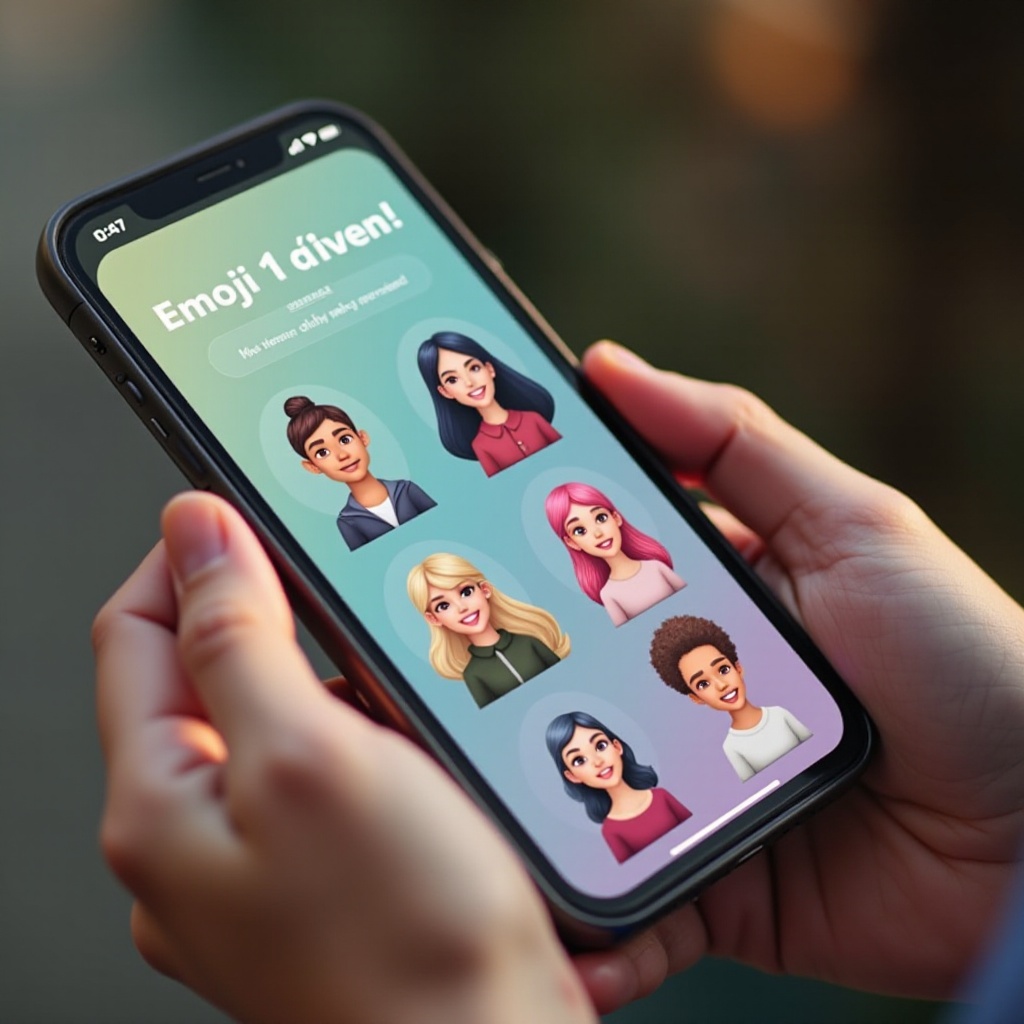
Understanding Emoji Features on iPhone 16
The iPhone 16 comes packed with updated emoji features that add to the excitement of personalizing your messages.
New Emoji Updates in iOS
Apple continuously updates its emoji library with each new iOS release, adding more inclusivity and creativity. The latest iPhone 16 update includes several new default emojis, such as diverse skin tones, new animals, and unique expressions, making it easier for everyone to find an emoji that represents them perfectly.
Difference from Previous Models
The iPhone 16 doesn't just add new emojis; it also enhances the process of creating and using them. With improved facial recognition and augmented reality (AR) capabilities, especially in the Memoji feature, the iPhone 16 offers smoother, more intuitive emoji creation. The hardware enhancements allow for more detailed and expressive animations than ever before.
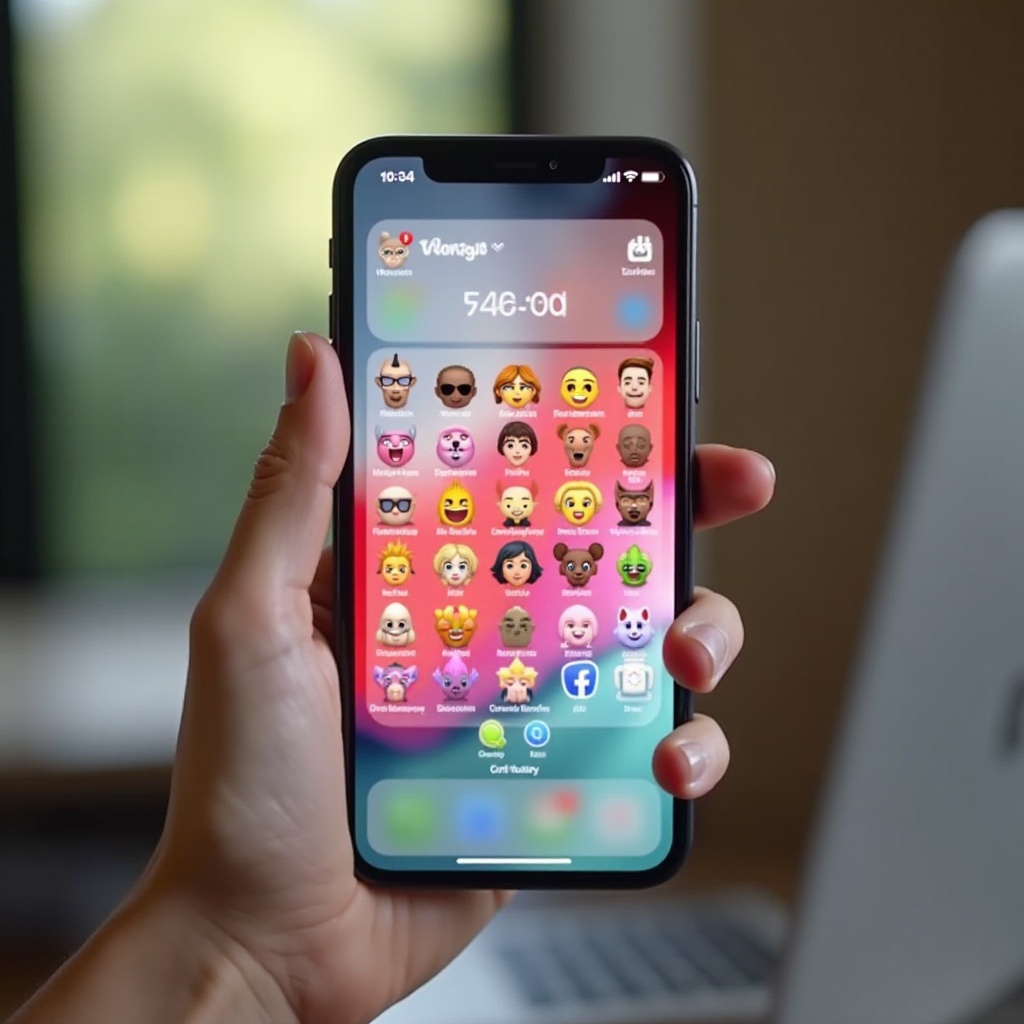
Getting Started with Emoji Creation
Before you begin creating your emojis, you need to ensure that your iPhone 16 is ready and equipped with all necessary tools and updates.
Preparing Your Device
- Make sure your iPhone 16 is running the latest version of iOS.
- Update all relevant apps, such as the Messages app.
- Free up sufficient storage space for new emojis and related apps.
Necessary Apps and Updates
For the best experience, download any recommended third-party emoji apps like Bitmoji or Zmoji. Ensure all your apps are up-to-date to utilize the latest features and improvements.
Accessing Emoji and Memoji on iPhone 16
- Open the Messages app.
- Tap on the emoji icon in the message box.
- Select the Memoji sticker to begin creating your custom emoji.
Creating Memojis on iPhone 16
Creating a personalized Memoji is straightforward and quite enjoyable on the iPhone 16. Here’s how you can create your Memoji.
Step-by-Step Guide to Creating Memojis
- Open the Messages app and start a new message.
- Tap on the Apple icon and scroll to find the Memoji sticker.
- Click on the 'New Memoji' button.
- Customize each feature such as skin tone, hairstyle, eyes, and more.
Customization Options: Face, Hair, Accessories
The customization capabilities on the iPhone 16 are vast. You can:- Choose between different skin tones, hairstyles, and facial structures.- Add different accessories like glasses, hats, or earrings.- Adjust the color of each feature for a more personalized look.
Saving and Using Your Memoji
Once satisfied with your creation, save your Memoji. You can now easily use it in your messages, FaceTime, and other compatible apps by selecting it from your Memoji stickers.
Enhancing Emojis with Third-Party Apps
While Apple’s built-in Memoji capabilities are impressive, third-party apps can offer additional creative tools for emoji enthusiasts.
Top Recommended Apps for Emoji Creation
- Bitmoji: Known for its vast library and customization options.
- Zmoji: Offers unique creative features and a user-friendly interface.
- Emoji Me Face Maker: Allows high levels of personalization with simple steps.
Features and Integration with iPhone 16
These apps often integrate seamlessly with Apple’s ecosystems:- Easily add creations to your messages.- Use them across various social platforms.- Sync with your contacts for personalized emoji use.
Pros and Cons of Third-Party Apps
Pros:- Greater customization options.- Larger variety of template options.Cons:- Some apps may require in-app purchases for additional features.- Potential privacy concerns with app permissions.
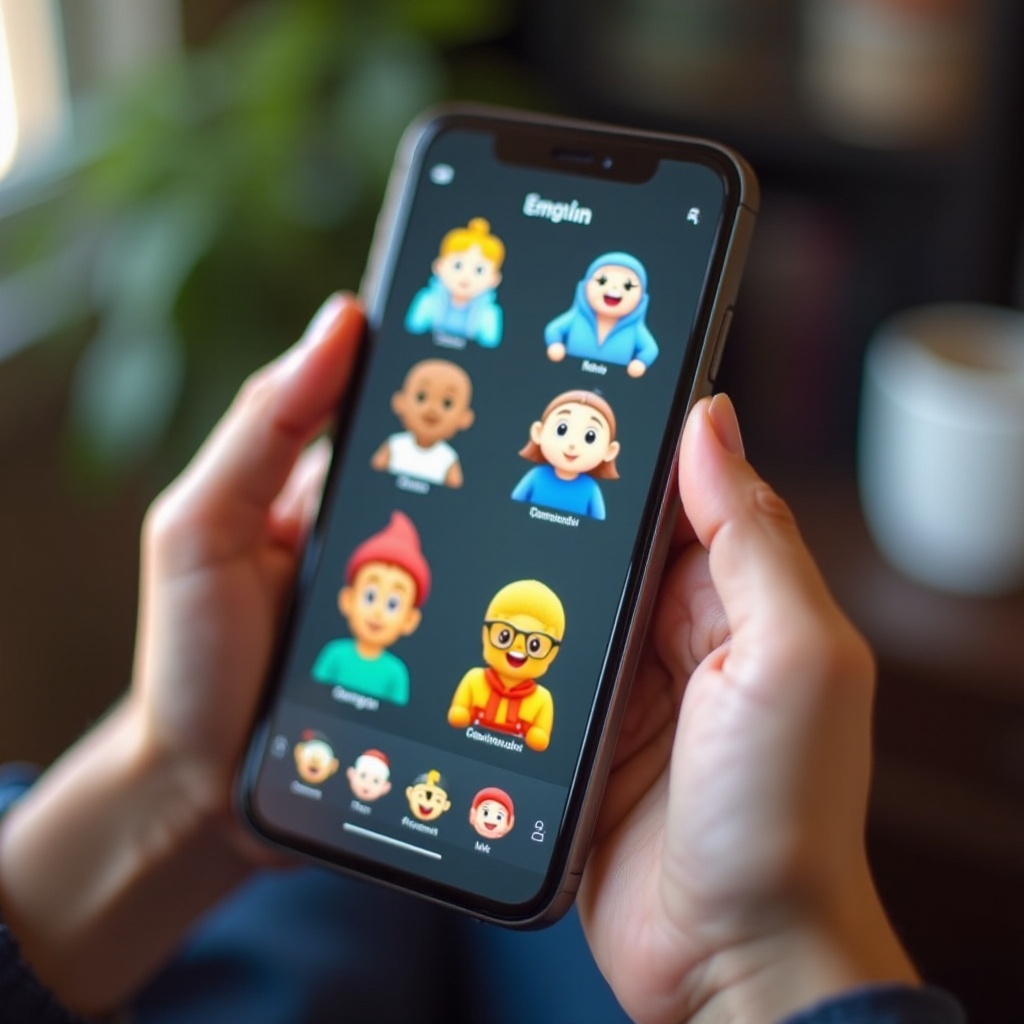
Advanced Tips for Creating Unique Emojis
Let’s explore some tips to elevate your emoji game.
Combining Emojis
Combine existing emojis to create new expressions or ideas. You can use emoji tools within your keyboard or third-party apps to merge different emojis into a creative design.
Utilizing Emoji Trends
Stay updated on popular emoji trends by following social media or tech blogs. Incorporate current trends to keep your emoji use modern and relatable.
Best Practices for Creativity
- Keep experimenting with different features.
- Use reference images for creating realistic Memojis.
- Share your creative ideas with friends for more inspiration.
Conclusion
Creating custom emojis on iPhone 16 is an engaging way to express yourself. By taking advantage of the new features, integrating third-party apps, and using advanced tips, you can make emoji communications more personalized and fun. Explore the endless possibilities of emoji creation, and don't be afraid to let your imagination run wild.
Frequently Asked Questions
How do I share my custom emojis?
You can share your custom emojis directly from the Messages app. Select your Memoji and send it within your conversation or save it as an image to share on various social platforms.
Can I modify an existing emoji on iPhone 16?
Yes, you can modify your saved Memojis at any time. Simply access the Memoji sticker in the Messages app, tap the 'Edit' option, and make the desired changes.
What should I do if my emoji creation app crashes?
First, ensure your app and iOS are updated to the latest versions. If the problem persists, try restarting your device or reinstalling the app. Seek support from the app developer for further assistance.
